Tables of information are boring.
In a sense, they’re meant to be that way. A good table communicates a lot of information in a concise, easy to understand way. Because the emphasis really should be on the information, over-designing a table can kill the effectiveness. However, in the right hands, clever design can not only make a table more attractive, but can actually increase readability.
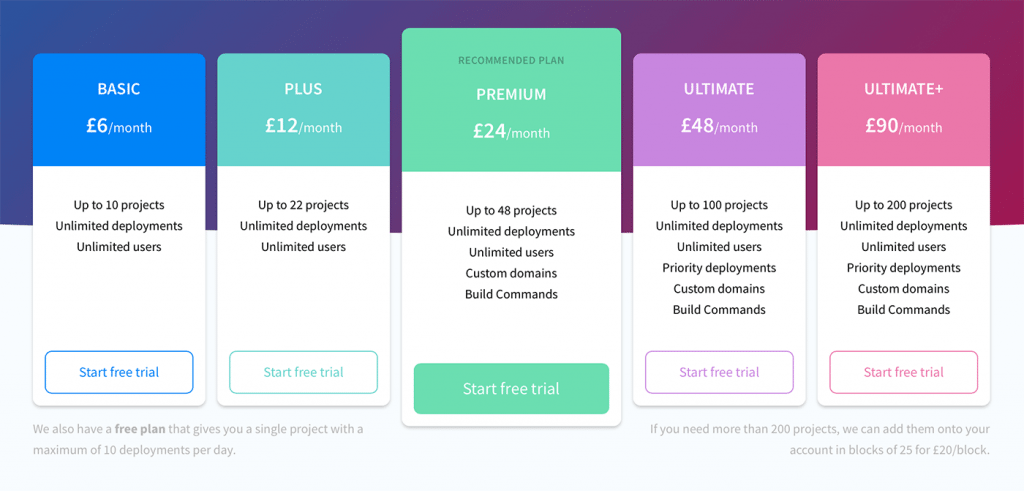
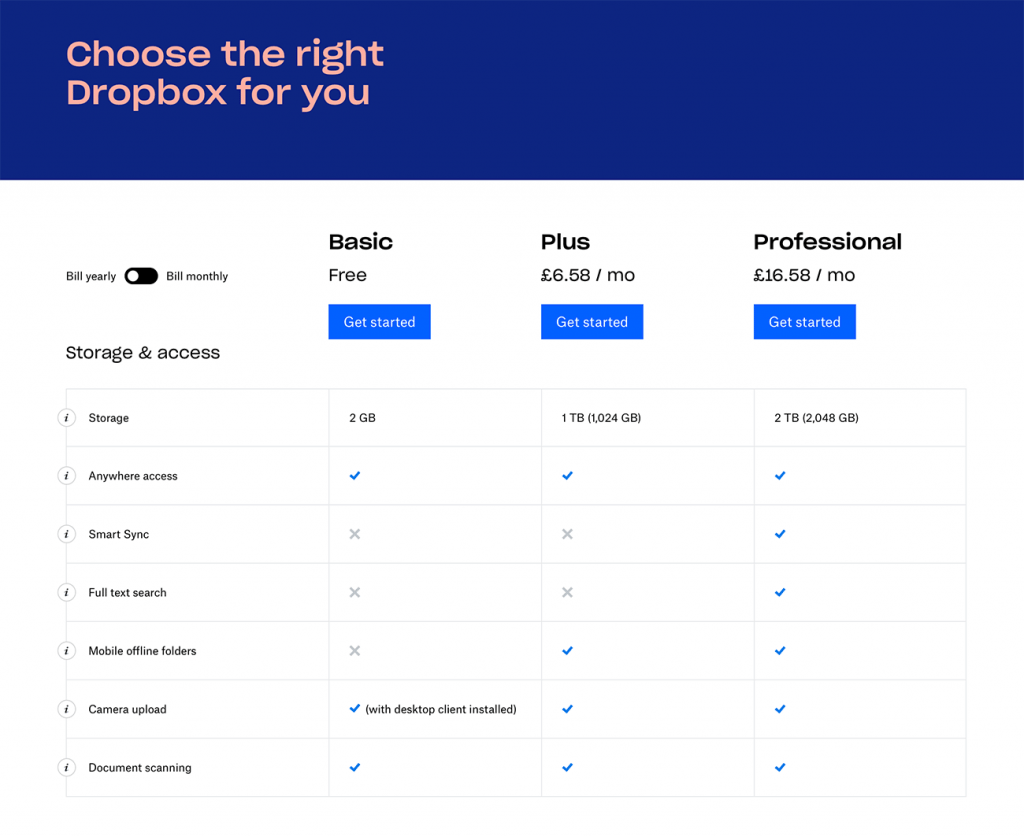
Today we’ll take a look at several ways you can improve the functionality and aesthetics of your tables. One of the most common places we currently find tables online is on a web app’s pricing page so most of our examples will take this form, just keep in mind that these principles can apply to any type of informative grid (whether or not it’s actually a <table>).
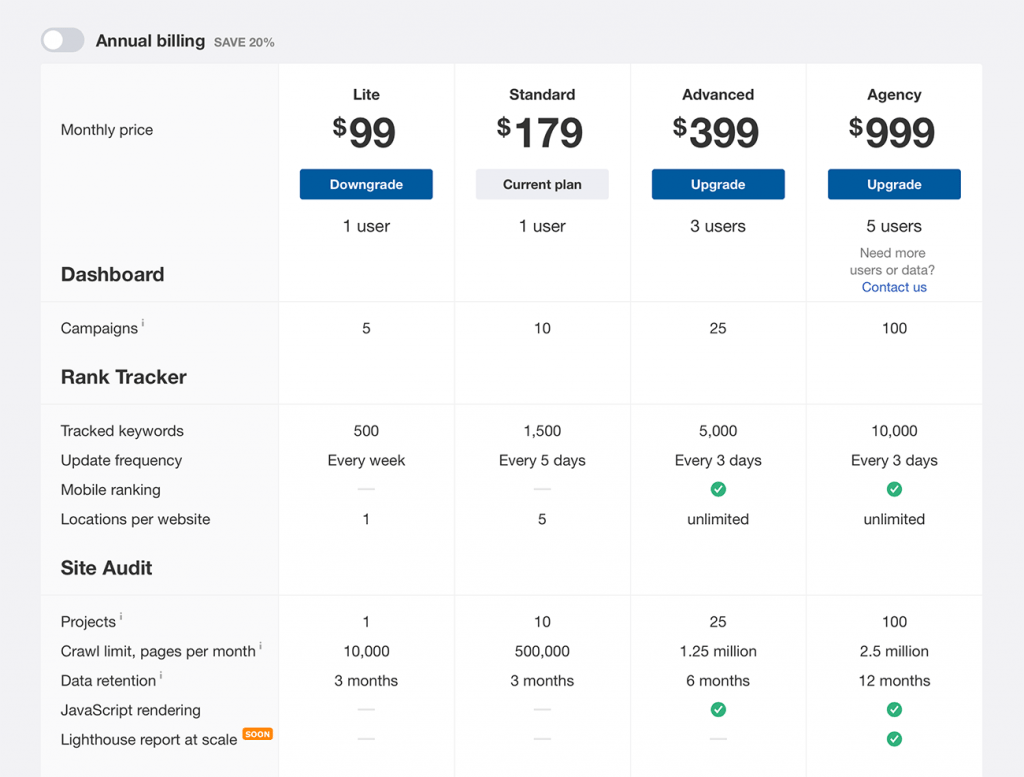
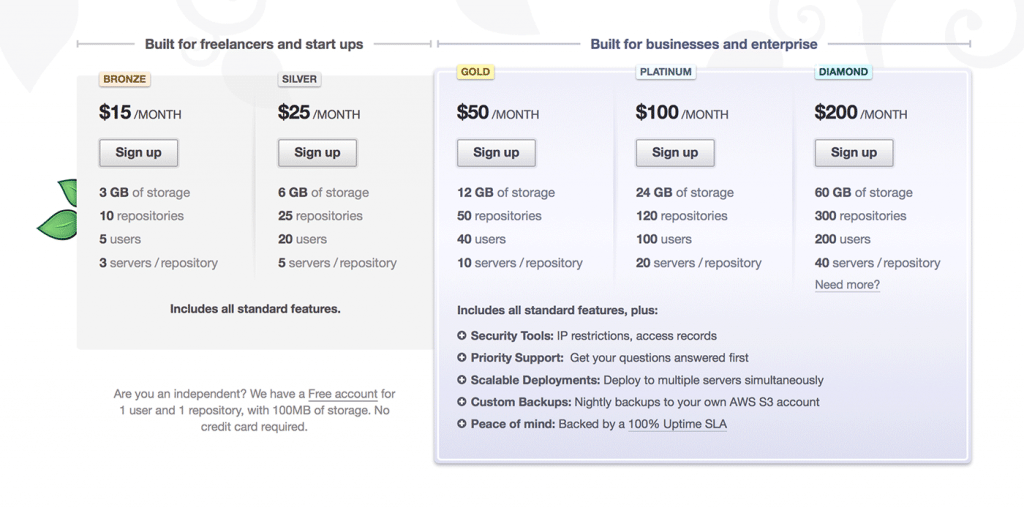
As always, we’ll start with the obvious. The first step is deciding on a general structure of your table. The structure you should choose depends on the type and complexity of the information you’re presenting. Choosing between vertical columns and horizontal rows can largely depend on personal preference. Sketch out your content in each form and decide which method you think conveys the information best. Obviously, if your message is based on multiple variables, a matrix is the way to go. Here’s a quick example of each to get you started.
For the record, this is the first, and hopefully the last, time you’ll here me suggest using Microsoft Office for anything design related. The truth is, tables are undoubtedly easy to make in Excel; that’s pretty much what it does. Compare this with the time it takes you to hard code the organizational structure in HTML and Excel will win every time.
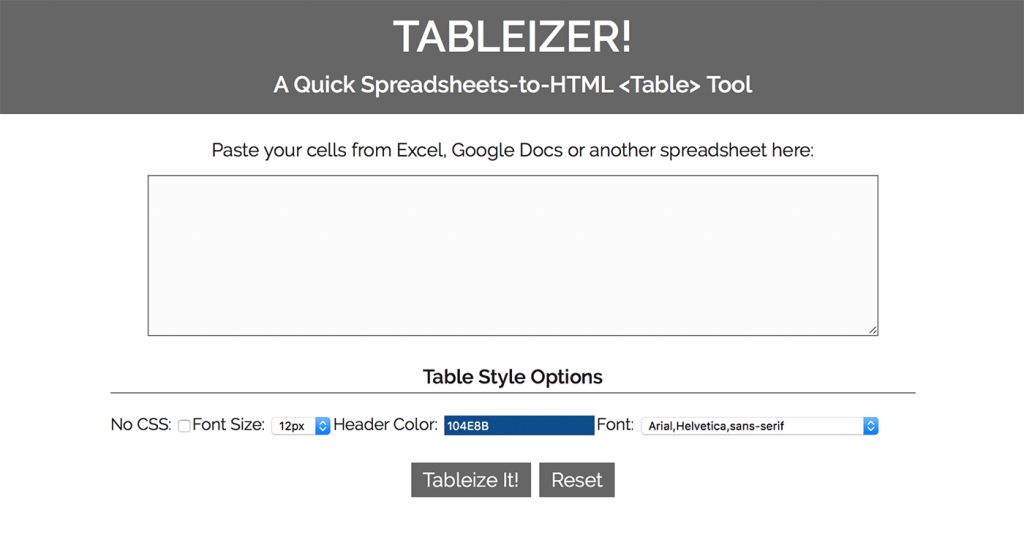
Today I stumbled across a great little web application called Tableizer that allows you to paste in your tables from Excel to magically transform them into HTML. You’ll still have to handle most of the styling on your own but you’ll definitely save some time on the front end.
Hate Excel? Don’t feel bad, me too. If you’re still looking to save yourself some time on creating the basic skeleton of an HTML table, there are tons of online generators that will get the job done. Note that I said “basic skeleton,” don’t go thinking you’re done after using one of these to cheat your way out of a little coding. You’ve still got a long way to go if you don’t want it to suck.
Here’s a quick list of free table generators to save you a Google search:
Now that you’ve got a basic table, the first step towards taking it out of the 90′s is to add some CSS. Of course, you can go crazy and spend hours experimenting with different styling options, just remember that even a little bit of color and font styling can drastically improve both the readability and attractiveness of the table.
Here are a few tutorials on how to properly style a table.
This is extremely common in pricing tables, but is applicable to any table. Think about the information in the table and consider whether you want the viewer to focus on a specific portion. Whether it’s the plan with the best value or a popular element in a list of features, try varying the color and/or size to make it stand out from the rest.
There are definitely plenty of ways, both subtle and over the top, to make the featured section stand out. Here are a few for inspiration:
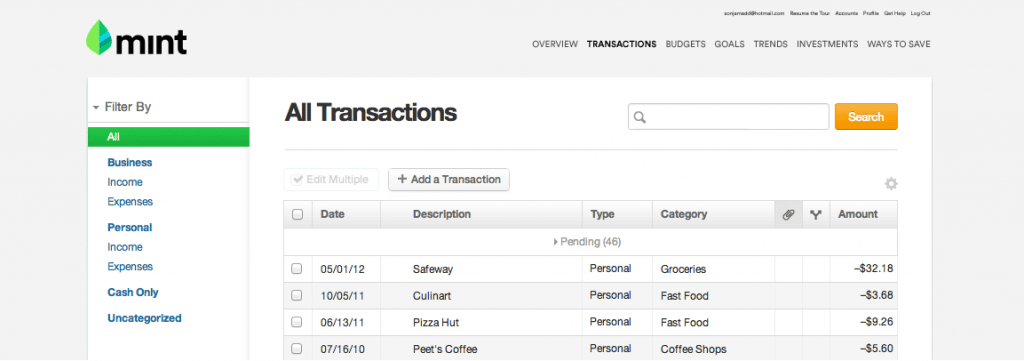
If you’re creating tables with a lot of information organized into several columns, it’s a good idea to consider adding a sort feature so your users can choose the way they want to see the information organized. Mint.com integrates table sorting into your list of transactions, making it super easy to change from a date-based view to a category-based view so you can identify areas where you tend to spend a lot of money. As you can see in the screenshot above, I tend to enjoy eating greasy fast food a lot more than I should!
Here are a couple of table sorting tutorials using different methods:
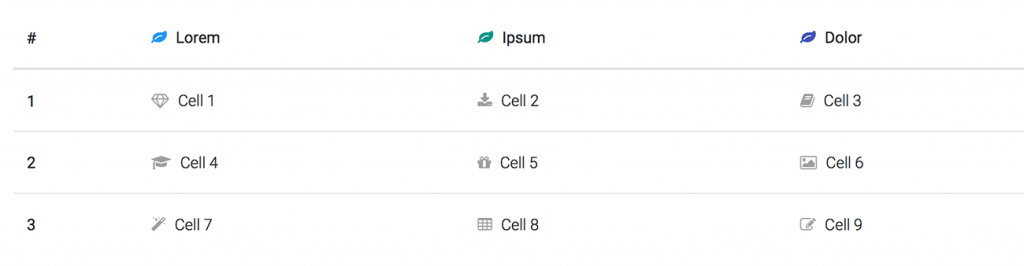
As I said above, the point of organizing information into tables is to make it understandable at a glance. By cutting down the necessary reading, well-designed icons can drastically improve the speed at which a visitor can comprehend the information in your table.
Beware, this goes both ways. Sloppy icons can leave your users scratching their heads trying to figure out what you’re trying to communicate.
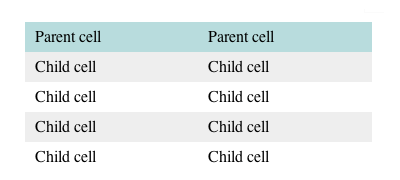
This is a pretty basic idea dating back to as long as tables of information have existed. Adding alternating row colors helps your eyes follow the line of communication and connect the floating information in the center of a table with the anchored category on the side or bottom. This simple technique can increase the readability of both large and small tables, but it’s a good rule of thumb to always include stripes (or some other visual aid) if your table requires the reader to connect pieces of information that are more than an inch or two apart.
Here are some free resources for adding stripes to your tables:
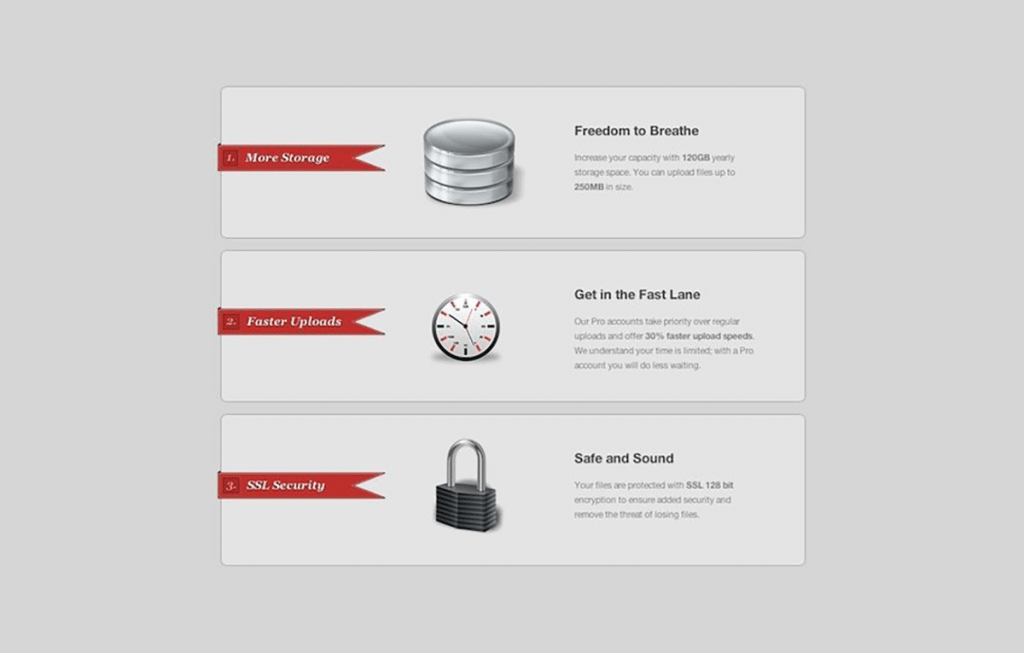
Shiny web 2.0 style design might be a bit overused, but it can still be a great attention grabber. I definitely don’t recommend adding too much superfluous visual flare to a large table that is already fairly complex. In these instances, simple is probably the way to go. However, if you’re creating a fairly small table with only a few items, there’s no harm in making it look amazing.
Hate that shiny web 2.0 look from the previous tip? No problem, there’s an even stronger argument for minimizing the table graphics. This allows the user to focus on the content without any unnecessary distractions. Use clean, subtle grid lines (or no lines), simple fonts and colors that contrast nicely with your background.
Sometimes adding a sort feature just isn’t enough. When you’ve got pages of information to sort through, nothing beats a search field.
The two table filtering tutorials I found both use JavaScript, let us know if you come up with another way!
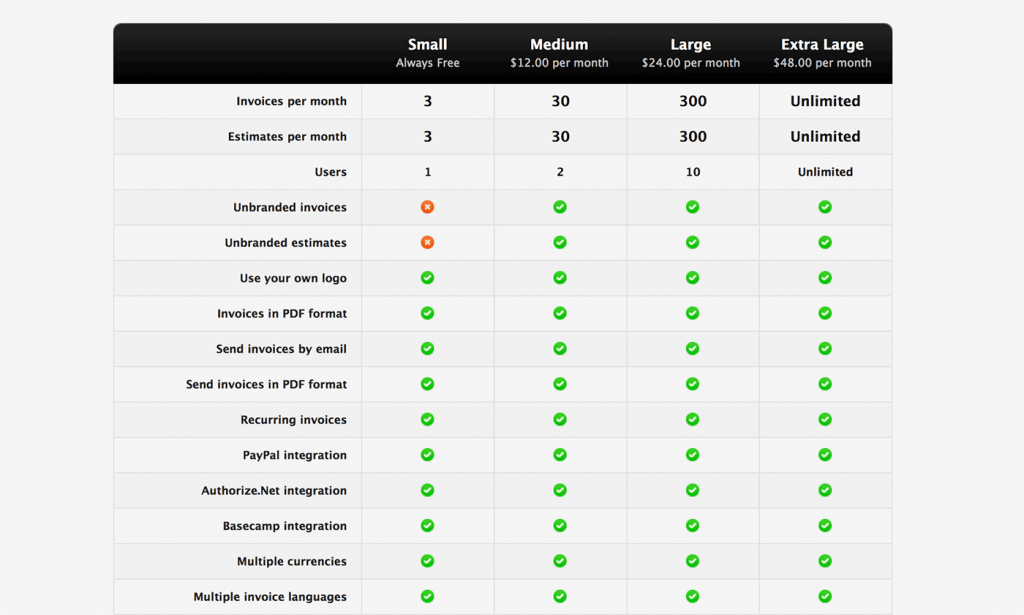
App developers love to tout huge lists of features and a table is definitely a natural and even appropriate way to go about it. However, sometimes designers pack tables with a lot of unnecessary, redundant information that could be presented in a much better way.
Check out the example above from Invoice Machine. The four plans they offer are nearly identical with the exception of three features. This makes for 15 unnecessary rows that leave your eyes jumping back and forth to connect the check marks with the corresponding feature. A simple bulleted list or chart that said “All of our plans include the following features:” would allow users to quickly see that no matter which plan they choose, they get all of these features. Then the table could be reserved for areas of differentiation, which would cut it down to a much more manageable 3 or 4 rows. Again, let me stress that tables should make the information more readable. If your table isn’t meeting this goal then it’s counter-productive.
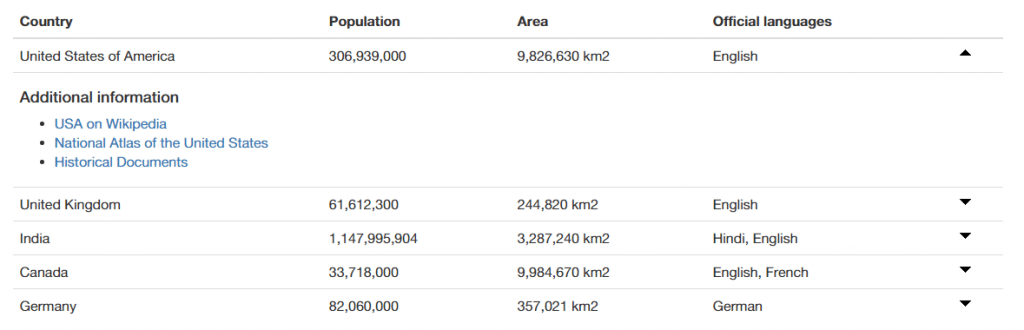
Another great feature that you can add to your tables is the ability to expand certain rows. This allows you to place a lot of content into a relatively uncluttered space. Pulling this off is pretty simple with a jQuery plugin called jExpand. Here’s a tutorial from jankoatwarpspeed on how to implement it.
If you’re using an expandable table, just be sure that your headings make it completely clear where to find certain information. The last thing you want is annoyed users, sifting through each section to find what they want.
This is a technique that really increases the readability of a complex table or matrix. The idea is to highlight whatever cell the user is hovering over along with both the column and row that it belongs to. Check out a live example here.
Click below to see the tutorial from “Ask The CSS Guy” on how to create this effect.
Here’s another tutorial from “Ask The CSS Guy” on how to add a feature that allows the user to select a given column in a table (say a pricing plan), which then highlights and expands to show more information. It’s the same concept as the expanding jQuery example above but with a very different intention and overall effect. Check out the demo here and the full tutorial below.
Well I’m sure that’s more than you ever wanted to know about tables in web design. Use the comments below to let us know your thoughts on the techniques above and be sure to share any unique tables you find!
Hit us up Facebook and Twitter to keep up with all the latest articles.
I have learnt too much from you guys…u bring everything design genius out for all to see.
Nice one.
Good tips and nice collection. There’s always room for improvement when it comes to tables. I especially like the horizontal style layout.
It’s good to see an article like this when a lot of people are trying to avoid tables. Don’t forget when it comes to presenting data and information like in the examples tables are the way to go!
Well written article, it is indeed important to write more about tables since they are often neglected.
Very useful article, its hard to come by good table design..
Awesome Post… When i was a Fresher, i was looking for something like this.
Excellent list. Already bookmarked. Will return when I am supposed to implement a table.
WOW, so much inspired for me.
Awesome post, truly inspired for me.
Thats a really inspiring post with a few great tips!
Even though I am a good web designer I am very poor at creating tables. After reading your blog now I am well perfect with tables. Now I am going to create tables in my site and going to post the website design in a contest running by grafikguru.com
good tutorial…
Great list, thank you!
Wow really terrific designing tips… I just love it and immediately going to design my site with this table and then going to post it in a contest running by grafikguru.com
Pretty good! I’m just starting out in this shtuff, so perfect timing! :)
now its easy to design a table as per the design in templates. Thankx for sharing it !!!
Here’s a cool example of table usage: http://www.fifa.com/worldcup/standings/index.html
Very useful guidelines. Table setting per se needs some degree of imagination and styling.
Nice round up!
I’ve collect myself too a few table examples: http://web-patterns.net/category/tables-infographics
Feel free to add it if you want.
Thanks alot !
great tips :)
Nice article! Bookmarked! Just to let you know: “time you’ll here me suggest using Microsoft Office” that should be a “hear” right?
Awesome awesome round up. Thanks
Awesome list. Some valid points. Thanks.
Some time ago, I wrote a post about a related topic: Automatically changing the style of your data, depending on its value: http://jaron.nl/blog/2009/make-your-tables-more-readable-with-value-based-styling/
only tabular data should be put into table markup. Quite a few of those examples look like they could have been done using divs?
Joshua,
Great article. Well designed tables can really make a web app come to life. Especially if they are dynamic.
Great tips,
Chris
Awsome post!
Thanks
Great article, thanks :) Good tips for every webdesigner. Also pick a good font for project is very important. Now i love sans serif fonts for my project, like Diavlo and antigoni http://www.fonts2u.com/antigoni-light.font
iam the king
Terrific Article for designing terrific tables……..thanks a lot for posting such useful info..:)
man, this looks really great, ill try that next time i make a table, hope it will look that good
Great post!
As for column filters, if jQuery is not your particular cup of tea, there’s also this one that works on top of Prototype.js – http://prototools.negko.com/demo/tableorderer/
It’s got a great demo on site and the code works. Check it out!
“Go Minimal” you write, and then use for different styles on the text…
Over designed is the concept on all these table unfortunately.
*Four different styles I mean :)
The word table has a bad taste in my mouth after HTML 4. Let’s call them vertical and horizontal groupings. Sound good?
Love it. Thanks too to Smashing Mag for bringing me here. Excellent article with some great tips and examples.
Here’s a great resource for table styling: http://icant.co.uk/csstablegallery/
Some of the styles are inactive (including the default) but there are still a lot of very nice designs there!
Great great post. I will be utilizing the tips here. Thank you!
That’s great. I just need a table style, and there is enough inspiration here!
Nice work. We had to create lots of tables in the past weeks. I would habe loved to see your Post befor.
Wow.Thanks for the inspiration.awesome post.
great work. i love the style and the design. really inspires me
Very helpful.
At my last job I gained a lot of experience in web design and grew to love working with CSS, but whenever I had to work with tables I felt lost. Always tried finding a reason to avoid creating & styling them
Wow.Thanks for the inspiration.awesome post.
I Want variout design of Tables (Office). Can you send me by Email if possible?
Nice presentation. I never thought tables could be not-boring as these ones. Thanks for sharing.
Can you post the link for the part 1 of this article?
Thanks Admin Very Nice
Well written article, it is indeed important to write more about tables since they are often neglected.
Do not forget to mention another feature. Using the footer for adding new rows to the table.
Great list, thank you!
Can you post the link for the part 1 of this article?
Ronnie Wood does not play bass guitar for the Stones.
WOW , i never thought i would be able to create those tables, thnx alot for the great post, will try to create the easy ones for now :)
thnx again
Nice post.
I really like the use of gradients in tables, great example here:
http://managewith.us/plans
Thanks
Thanx for the brilliant post that shows many great things can be achieved with tables – the element which’s been mentioned with many people as a prehistoric thing.
Amazing post. Forms and tables always seem to me to be the trickier elements of web design. Ideas a plenty!
Good post. Thanks ;)
When you know the know how of doing tables in CSS , it will be easy to create any design you like, it will be up to your immagination :), its hard at the beginning then it becomes really easy.
Thnx
who’s mint.com account is that? blimpie, in-n-out burger and burger king all on the same day!!??
Thanks Admın Very Nice…
Good post. Thanks ;)
nice work…. trims
Great resource Joshua. Thanks for the post!
Why do you think tables of numbers are boring? People with an interest in a subject are necessarily intersted in the numbers. Tables are often designed so badly the numbers are difficult to see (webdesigners take note!). But tables have been serving humanity since the Babylonians started using them a seriously long time ago.
Thanks ;)
Ronnie Wood does not play bass guitar for the Stones.
thanks admın very nıce !!!
Nice table css thanks
Nice post…
Awesome…
hey Ronnie Wood does not play bass guitar for the Stones.
I discovered your blog page on yahoo and check a lot of the early blogposts. Preserve up the superb operate. Trying to find forward to reading through additional from you afterwards!.
Really superb examples. Nice collection of tables which is bookmarked. Thanks
thansk admin.very nice..
Brilliant Article.
Hi! This is kind of off topic but I need some help from an established blog. Is it very difficult to set up your own blog? I’m not very techincal but I can figure things out pretty fast. I’m thinking about creating my own but I’m not sure where to begin. Do you have any ideas or suggestions? Thank you
these are awesome examples! I was hoping you would include the code for some of them. maybe the html and css? is that possible?
Great ideas to help think outside the box. I was having trouble finding a look that would please a client and these helped!
Very useful article. These price comparison tables can make a huge difference in converting a customer to a subscription service oriented business.