Need a cool hover effect for something on your site? Look no further! We’ve created several custom examples that you can view live for inspiration.
If you like the effect, steal it! We’ve got the CSS ready and waiting for you to copy.
Like the article? Be sure to subscribe to our RSS feed and follow us on Twitter to stay up on recent content.
Hover effects can make your site feel much more dynamic and alive. It used to be the case that JavaScript was required to do anything really interesting with a hover effect but these days CSS3 is capable of doing a ton of really cool stuff if you’re creating enough.
The effects we’ll be using today all use code that is supported by modern browsers, meaning of course Mozilla and Webkit for the most part. IE support is spotty at best across various versions so be sure to test thoroughly in your own implementation. Fancy hover effects are one of those things that you can usually degrade fairly gracefully so that older browsers still see some change.
Live Demo: Click Here to Launch
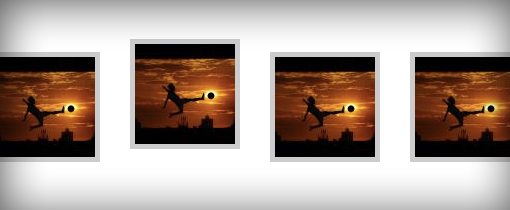
This works best when you have a series of horizontal items. That way when you run your mouse across them you get a nice wave effect.
This one is super easy to implement and there are in fact several ways to go about it. What I did below is just apply a margin to each image and then reduced that margin on hover. The margin starts at 15px, then reduces to only 2px on hover, which makes the image jump up. You could easily use this same effect on text items if they were in a list.
The transition here is completely optional as the effect still works quite well without it. Just to make it a little smoother though I threw in a quick animation set to ease-out, which I thought provided the best effect for this particular subject.
.ex1 img{ border: 5px solid #ccc; float: left; margin: 15px; -webkit-transition: margin 0.5s ease-out; -moz-transition: margin 0.5s ease-out; -o-transition: margin 0.5s ease-out; } .ex1 img:hover { margin-top: 2px; }
br>
Live Demo: Click Here to Launch
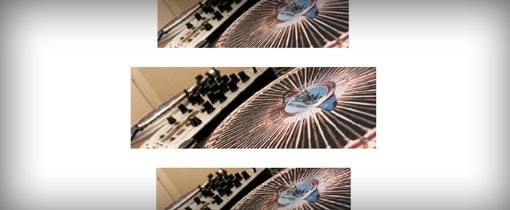
For this one I wanted a sort of lava lamp effect so that as you move your mouse down the list, each image slowly expands and then goes back to its original size.
To accomplish this, I inserted a stack of images that were 400px wide by 133px tall. I then sized those images at 300px by 100px in the CSS and expanded on hover. Since I had a center alignment, the new size of the image threw off my alignment, a negative margin set to half the size of the growth in the width addressed this problem.
/*Example 2*/ #container { width: 300px; margin: 0 auto; } #ex2 img{ height: 100px; width: 300px; margin: 15px 0; -webkit-transition: all 1s ease; -moz-transition: all 1s ease; -o-transition: all 1s ease; } #ex2 img:hover { height: 133px; width: 400px; margin-left: -50px; }
br>
Live Demo: Click Here to Launch
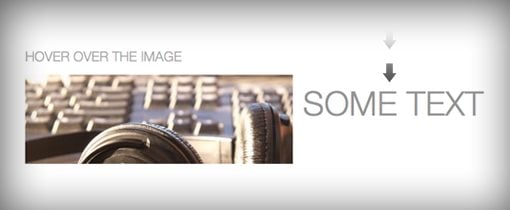
For this one I wanted to create a JavaScript-like event where you could hover over one item and see an effect on another. What I’ve done to accomplish this is to throw some text and an image into a div and then float everything left so that the text is in line with the image. Next, I applied color: transparent and line-height: 0px to the div. This places the text at the top of the div and hides it.
To make the text appear on hover, I simply changed the color and line-height. When you hover over the image, the text zooms into view! It’s a pretty neat trick considering it’s all CSS.
#ex3 { width: 730px; height: 133px; line-height: 0px; color: transparent; font-size: 50px; font-family: "HelveticaNeue-Light", "Helvetica Neue Light", "Helvetica Neue", Helvetica, Arial, sans-serif; font-weight: 300; text-transform: uppercase; -webkit-transition: all 0.5s ease; -moz-transition: all 0.5s ease; -o-transition: all 0.5s ease; } #ex3:hover { line-height: 133px; color: #575858; } #ex3 img{ float: left; margin: 0 15px; }
br>
Live Demo: Click Here to Launch
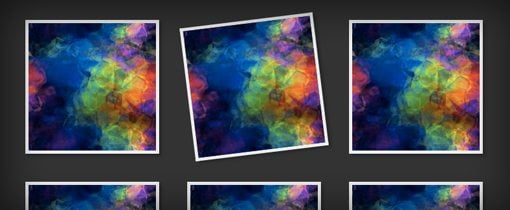
This one is super simple but it’s a great effect for a thumbnail gallery. The basic premise is that you create a grid of images and then set the images to rotate when you hover over them, creating the illusion of a crooked photo hanging on a wall.
We’ll use lots of newer, browser-specific CSS on this one so you might want to add in something for older browsers as well. Our gallery will use box-shadows (optional), transitions and transforms to pull off the effect we want. The transform will handle the rotation and the transition will make it nice and smooth.
To take this one even further, you could use pseudo-selectors to make the images lean in different directions.
#ex4 { width: 800px; margin: 0 auto; } #ex4 img { margin: 20px; border: 5px solid #eee; -webkit-box-shadow: 4px 4px 4px rgba(0,0,0,0.2); -moz-box-shadow: 4px 4px 4px rgba(0,0,0,0.2); box-shadow: 4px 4px 4px rgba(0,0,0,0.2); -webkit-transition: all 0.5s ease-out; -moz-transition: all 0.5s ease; -o-transition: all 0.5s ease; } #ex4 img:hover { -webkit-transform: rotate(-7deg); -moz-transform: rotate(-7deg); -o-transform: rotate(-7deg); }
br>
Live Demo: Click Here to Launch
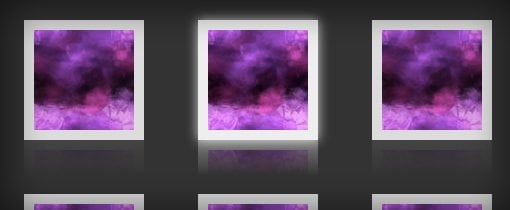
This one is pretty complicated so I had to wrestle with it quite a bit before I came up with an effect that I liked. The default state of the image is at a slightly reduced opacity. Then, when you hover over it, the opacity cranks to full, a glow appears around the edges and a reflection (Webkit only) pops up.
Unfortunately, the reflection isn’t something that responds to a transition, so it sort of just pops in right away while the rest fades in, but it’s still a pretty nice overall transition.
If you’re confused about how CSS reflections work, you can read all about them in a great article from David Walsh.
#ex5 { width: 700px; margin: 0 auto; min-height: 300px; } #ex5 img { margin: 25px; opacity: 0.8; border: 10px solid #eee; /*Transition*/ -webkit-transition: all 0.5s ease; -moz-transition: all 0.5s ease; -o-transition: all 0.5s ease; /*Reflection*/ -webkit-box-reflect: below 0px -webkit-gradient(linear, left top, left bottom, from(transparent), color-stop(.7, transparent), to(rgba(0,0,0,0.1))); } #ex5 img:hover { opacity: 1; /*Reflection*/ -webkit-box-reflect: below 0px -webkit-gradient(linear, left top, left bottom, from(transparent), color-stop(.7, transparent), to(rgba(0,0,0,0.4))); /*Glow*/ -webkit-box-shadow: 0px 0px 20px rgba(255,255,255,0.8); -moz-box-shadow: 0px 0px 20px rgba(255,255,255,0.8); box-shadow: 0px 0px 20px rgba(255,255,255,0.8); }
br>
These five examples should be enough to inspire you to create your own awesome CSS hover effects. Remember to experiment with these, combine them and add in your own flair to make them more interesting.
If you’ve spotted any cool hover effects around the web, we want to see them! Leave a comment below and link to a page with an example.
This is great, thanks!
What a great post, this is all useful stuff – thanks!
Nice work if everyone uses these tips will have an internet prettier. :)
loved it, thanks for sharing!
Nice, I think I will try some of them on my website. Thanks for sharing!
These are really simple effective steps that can give a website so much zazz when it is only just a hover action! Already starting to think how i can incorporate this into the websites i work on.
Tops.
great stuff! anything to eliminate bulky javascript is welcome.
Amazing!!!!
Congrats my friend…
Fade In and Reflect is a neat effect :). The shadow though needs adjustment since it shows first before the border/glow fade in.
Overall though, quite impressive :)
thats great, thanks…
all amazing….
thank, this great!
I love it.. !
Thanks, I will use some of these.
The last 2 don’t work in IE8.
very useful tips..thanks for sharing..great
Great to see that CSS3 can do these effects, they are like jQuery.
Nice list thanks
I’m currently trying to use these type of effects more and more to improve the user experience on sites I’m building
Used well they they can really make a site more user friendly
Crooked Photo doesn’t work in IE9.
cool, with the advent of ss3 is no longer necessary to use many javascripts
Love it, really nice! Thanks a lot
Very nice! I’m in “search-mode” where to use this :)
Thanks!
Amazingly, the nearly all work in IE8 (meaning they actually work or they don’t seem to do anything really bad, but just don’t show the intended effect). Only exception is the text fade: the text that should fade in is showing in black and you get an ugly “jumping text” effect on the hover. Oh, and the Stack & Grow effect looks ugly and jittery (no easying?).
These are so cool. I especially like the stack one. Great job. This is going into my bookmarks for sure.
Awesome write up! I’ve totally digging the the rotation css. I’ve been wanting to do that on my blogs dates.
I tried the last one on my site but unfortunately it didn’t work out :(
Well done!
This is exactly how tutorials should look like. Simple, organized and usefull. I look forward for the next sample of CSS3.
Cheers.
Thanx! Fine code – cool effects!
Awesome!
thank you ! very usefull and easy to try
now waiting for the next one ;-)
PS: i hate IE
Great effects. Didn’t know few of those even exist, since now :)
I love this kind hover effect with some emotional thing http://dribbble.com/shots/139323-E-Dizains-Button-Hover
These look awesome. It’s a shame that browsers like IE still don’t support a lot of these CSS3 effects.
Thanks! This is great! :)
Awesome CSS to MPF
Thank you! Very useful! Keep up the good work.
Great examples!
Oh, and the Stack & Grow effect looks ugly and jittery (no easying
http://www.lovereallove.com
Nice examples, unfortunately the code with the examples is not complete: you really should always end with the declaration without a prefix, for example in some examples you have a -webkit-transition, a -moz-transition and an -o-transition, there should be a plain ‘transition’ at the end for future browsers.
fantastic resource, i will use for my next project!
i rate 9!..it would be 10 with the download file section of any example.
nice!..this article is really useful and great…thanks for sharing…^_^..hope to learn more from the author/s…^_^..
Thank you verymuch :D
Wow another great CSS, i like this one.
Thank you so much, i’ll recode and add to my site.
This is an interesting post. Thanks for sharing this. I am sure it can spice up a few of my web designs.
yyy …………these files are not worked in IE browsers…soooo badly
Thanks nice tutorial and examples.
My nice comment!
thanks for this tips !
i do have a small problem:
in this page:
http://kidumi.com/dorivry.co.il/projects/architecture1/
1. when moving the pointer from the menu – there’s no ease effect. it goes straight to the default pos.
2. when hovering, the tabs goes up about 2px. why is that ?
how can i fix that?
thanks :)
Thanks. Amazing tutorial though it’s not working in IE8.
thanks for the post.
i’m using it in my social bookmark, and change the degree..
thanks again..
Gracias por los tutoriales, muy prácticos y fácil de uso. :)
thanks, these examples are cool,
I love CSS3. The code is short and easy, but it gives a huge visual effect. Thanks a lot for sharing the samples!
Really nice examples
Thanks, used these in a few sites now
Adam
That is great bumper style. thanks to put in site.
When I perform the “Fade in And Reflect” effect and target a PNG image, the glow effect does not take to the image outline itself but rather the total size resulting in a box shadow. Is there a way to have the glow just on the image?
Thanks in Advance
nice professional effects, will be using it.
These are cool, but you don’t explain how to actually use them on your site. If you had a small explanation I would use them. For now, I’m playing guess and check with your previews, trying to recreate it :/
So I want to add the bump to my site’s top four images, but I’m unsure as to how to apply it. Do add the same code in the css? or do I apply to every individual image?
If you have a suggestion just email it to me:
oliver.s.smith@gmail.com
Thanks!
really that’s very nice
Great stuff!
Thanks for sharing.
Great effects I had already done the graphics up to do this and could have saved time by using your effects!
Found what I was searching for!! Thank you very much :)
Hope one day to give favour back :)
Amazing!!!
These are really great!!!
Thank you for this post
i need full code of Stack & Grow CSS.
plz send me a email of this.
I’ll be very very thankl full to u……
Yours,
Nevil
Great job man …
Hey, this is great! I need some help though…how do I put the image in? I’m especially interested in the Fade Text in. Where do I put the image? And then in html, where do I put the code? I’m using tumblr, by the way :D
verynice
thank you. .
:)
These are fantastic! They look fabulous and they’re not very difficult to implement. Thanks so much!
Awesome!! Thanks for the post.
A very nice approach in CSS design.
Hello.
very good tutorial! thanks you :)
do have a question regarding Bump Up:
Using the code i get the ease effect when hovering but is there a way to make it ease on the way back too?
Excelent!!! Just excelent!!! Thank you very much.
Wow, these are great, thanks for sharing! It’s really innovative how you have managed to create such stylish effects in such a simple way, and without using any Javascript.
It’s really cool, thanks for sharing
La verdad muy buenos ejemplos, me has inspirado para utilizarlos de buena manera gracias TANK YOU!!!!
Crooked Photo CSS is cool !….
Crooked Photo CSS is cool !…
really nice hovers,good for celebrity sites
Absolutely loved this! Thanks so much!
this is absolutely 100% save my time to create crooked logo for my site, thanks! :)
This is amazing.
thank you very much for this!
This is so cool.. :)
Thanks for this post
thank you , thank you , thank you !
Nice Work. Bumb Up is really good
Does anyone know how to apply the stack and grow to a “fixed” social bar? I would love to have the effect that is on the OSX toolbar, where the icon grows and then shrinks back down. Please if anyone could tell me how to do this I would love it. Thanks.
Thank you so much!
Just to point out that you can animate backgrounds on hover with this technique.
Simply cool work guys.
wooooooooo. that’a a great work
Can i do this in Dreamweaver? What does i need to fill inn? Please answer me!! Great work!
Thanks for the great tips! I hope IE 10 allows animation with CSS.
This is really awesome! straight to my bookmarks :)
Wow, incredible blog format! How lengthy have you ever been blogging for? you made running a blog look easy. The full glance of your web site is great, as well as the content!
Thanks a lot for sharing it
This helped me and using it I made a simple snippet to show the author info using the CSS3 hover effects
http://webstutorial.com/css3-image-hover-effects/css3
How do I make the Bump Up work on navigation images below my header?
it’s to good ……………
Is there a way to have the glow just on the image?
Thanks in Advance
Okay, finally got Bump Up to work. Thanks!