Creating Fading Site Dividers

by on 8th December 2008 with 15 Comments

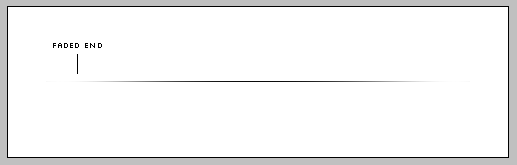
You might have seen these fading dividers/separators on various sites, which seem to fade both horizontally and vertically. Here is an example of what I mean:

They provide a great way to split content up, doing so in a subtle and non-intrusive manner. I would like to share a simple way to create these fading dividers using Photoshop.

Step 1

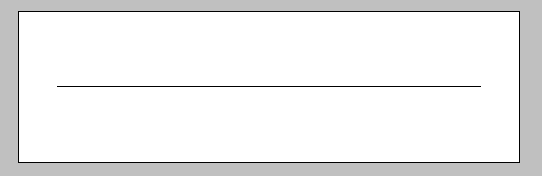
First, create a new layer. By using the pencil tool, draw a 1px solid horizontal line. Hold the SHIFT key as you click and drag the line to keep it straight. This is the basis for the whole fade effect.
Step 2

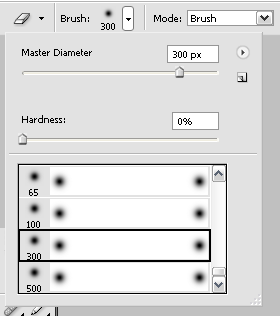
Select the eraser tool. Choose a very soft brush setting. The larger the brush size, the longer the fade (you can experiment to find the size that works best for your needs).
Step 3

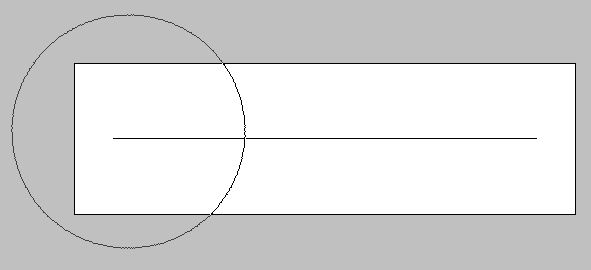
Erase the left and right ends of the line. This makes the line fade near the ends.
Step 4

Duplicate the layer containing the line (right click the layer in the right hand panel, then select ‘duplicate’). Select the lower of the two layers.

Step 5

Select filter>blur>Gaussian blur. Choose a radius of 3px to create the fade effect (or pick one which suits you!).
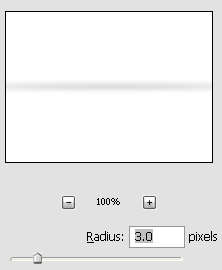
Step 6

Use the marquee tool to select everything on or above the solid line (with the blurred layer selected). Hit delete key.
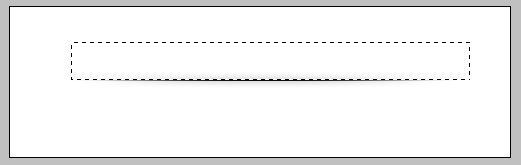
Step 7

Adjust the opacity of the solid line and/or the shadow to suit your preference. Here is what it looks in the end.

As a final note, if you want a greater amount of shading (like the one shown in the example at the top of the page), you can achieve that by duplicating the blurred layer multiple times (right after applying the Gaussian blur) until you are happy with the extent and intensity of the blur (and then, merge the blurred layers).

You can use this technique to create both horizontal and vertical content dividers. And with a little bit of tinkering around, it’s not too hard to come up with something like:

So go on and spice up your borders, separators and edges! If you know of any other sites using this technique (or would like to share your own), please let us know in the comments. You never know, if we like your design it may end up being featured on the site!

Comments & Discussion

15 Comments

  • http://www.varitage.com Rob Heller

    I used this method in September for my agency’s site, varitage.com

  • http://www.raymondselda.com/ Raymond Selda

    Nice tutorial. I will definitely have a use for this.

  • http://www.pinkpetrol.com pinkpetrol.com

    Nice tut, use this technique for my new pinkpetrol site, coming soon!

    More tuts!

  • http://wheelsandwood.com Wheels and Wood

    Great tutorial, I have always wondered how to get such clean looking fades, thanks.
    Will definitely try this now.

    Cheers
    Eric from Wheels and Wood

  • http://www.skinyourscreen.com/site mrbiotech

    There is a much faster, simpler method using layer-styles on a line drawn with the pencil tool. Just apply a layer-style for a reflected gradient set at 0 degrees fading from your intended foreground to background colors. 2 Steps, and no subjective erasure required.

  • http://www.net4manpower.com Rockin

    HI,

    Thank you so much for your information.Really it is more useful for me.I am a freelancer,i am very interested to learn design.This is very useful for me.www.net4manpower.com provide the freelance webdesign and graphic design and also other freelance projects to the professionals in all over the world with free registeration.please provide like ohter techniques also for begnners.
    Thanking you.

  • http://www.belinkddesign.com Kimh

    Interesting. I’m definitely going to have to try this out and possibly see if there’s a way to do it in Illustrator.

  • http://www.digitaldesignadvice.com/ Digital Design

    Great tutorial, I think that having good dividers is so important for a great design. I hate to see a design that has a look of not being finished, which I think sometimes happens with low standard designers mainly concentrating on the first things you see.

  • http://www.bijusubhash.com Biju Subhash

    Thanks for sharing :D
    Biju Subhash

  • ZP

    this is very perfect tutorial. i’m come from china, thanks so much!!!!!

  • Ryan Johnson

    Is there a way to do this in Illustrator CS5 ?

  • Ryan Johnson

    Is this possible to create in Illustrator if so how ?

  • http://www.com-http.org Dimitrije

    It is possible to do this in Illustrator CS5. I did it with rectangle 1px wide with gradient 3 color stops all black first and last stop are about 50% opacity middle 100% opacity. Then duplicate that rectangle, effects-blur-gaussian blur 2px and voila. Experiment little with gradient to achieve desired divider look. Cheers.

  • Nick S.

    Cool graphics. Shadows are sexy. :)

  • Jo

    Nice and easy. Thanks!

Subscribe
Membership
About the Author