Search Results For: enhance

How to Add a Watermark to PowerPoint

PowerPoint Templates / 27 Apr 2023

How to Add a Watermark to PowerPoint

A watermark in PowerPoint is a semi-transparent image or text displayed in the background of slides, often used for branding, security, or stylistic purposes. It helps establish brand identity by incorporating logos or slogans, creating a consistent and professional appearance.

Watermarks also protect intellectual property by discouraging unauthorized use or distribution with copyright symbols or identifying information.They can convey confidentiality, labeling slides as “confidential” or “internal use only” when dealing with sensitive information.

In this article, we will discuss how to add a watermark to your PowerPoint slides using different methods.
How to Add a Border in PowerPoint

PowerPoint Templates / 26 Apr 2023

How to Add a Border in PowerPoint

A border in PowerPoint is a visible line or frame surrounding an image or text box, enhancing its visual appeal and drawing attention to the content. Borders help define boundaries, separate elements on a slide, and provide a polished, professional appearance.

They can be customized in terms of color, thickness, and style to match the presentation’s theme or emphasize specific elements. By using borders, you can improve the overall design, create emphasis, and increase the readability of your slides, making your presentation more engaging and effective.

In this article, we’ll guide you through the process of adding borders to various elements in PowerPoint, helping you create engaging and professional-looking presentations.

How to Curve Text in PowerPoint

PowerPoint Templates / 20 Apr 2023

How to Curve Text in PowerPoint

Curved text in PowerPoint is a stylistic feature that allows users to display text along a curved path, such as an arc, circle, or custom shape. This creative text formatting technique adds visual interest, helps break away from traditional linear layouts, and can enhance the overall design of a presentation.

To create curved text, you can use PowerPoint’s WordArt or text-on-a-path features. These options enable you to customize the curve, adjust the text’s position, and apply various formatting options like font type, size, and color, resulting in a unique and engaging slide design.

This article will guide you through the process of curving text in PowerPoint using WordArt and the text effects available in the software.

The Geometric Design Trend: Patterns, Fonts, and More

Trends / 20 Apr 2023

The Geometric Design Trend: Patterns, Fonts, and More

One of the design styles that’s been gaining popularity is the use of geometric elements including patterns, geometric fonts, and other elements to create a design scheme. Often these patterns and elements are rather simplistic, but they can have complex elements as well.

Geometric shapes and elements can be used for almost any part of a design, from a hero element to the full aesthetic.

Here, we’ll take a look at this design trend, characteristics, and tips to help you use it well.

How to Add Notes to PowerPoint

PowerPoint Templates / 12 Apr 2023

How to Add Notes to PowerPoint

Notes in PowerPoint are additional text elements that can be added to each slide, serving as a reference or guide for presenters. They are not visible to the audience during the presentation. Notes help presenters remember key points, elaborate on slide content, or provide reminders for engaging the audience.

Using notes can enhance a presenter’s confidence, ensuring a smooth and well-organized delivery. They also offer a valuable resource when sharing presentation files with others, providing context and supplemental information, making it easier for recipients to understand the slide content and intended message.

This article will walk you through the process of adding notes to your PowerPoint slides and managing them effectively.

How to Change Opacity in Procreate

Procreate Brushes / 7 Apr 2023

How to Change Opacity in Procreate

Procreate is a powerful digital illustration app for iPad that offers a wide range of tools and features to create stunning artwork.

One essential feature is the ability to change the opacity of layers, brushes, and even specific elements within a layer.

In this article, we will walk you through the steps to change opacity in Procreate, and provide tips for effectively using opacity to enhance your digital art.

How to Blend in Procreate: Smudge Tool, Gaussian Blur, and Brushes

Procreate Brushes / 5 Apr 2023

How to Blend in Procreate: Smudge Tool, Gaussian Blur, and Brushes

Blending is an essential technique in digital painting that allows artists to create smooth transitions between colors, add depth and texture, and achieve a more natural, realistic look in their artwork. Procreate, a popular digital painting app for the iPad, offers various tools and techniques for blending.

This article will discuss blending in Procreate, focusing on the Smudge tool, Gaussian Blur, and blending brushes.

Additionally, we will share some tips on blending effectively in Procreate to enhance your digital artwork.

How to Crop in InDesign: 2 Methods Explained

InDesign Templates / 3 Apr 2023

How to Crop in InDesign: 2 Methods Explained

Adobe InDesign is a versatile and powerful design tool used for creating layouts for print and digital media. Often, while working with images, you may need to crop them to fit within the design or to remove unwanted parts.

Cropping images in Adobe InDesign is an essential skill for any designer working with layouts for print or digital media.

In this article, we will explore the different methods for cropping images in InDesign, using step-by-step instructions and tips for achieving the desired results.

What to Use InDesign For: Tips, Use Cases & More

InDesign Templates / 31 Mar 2023

What to Use InDesign For: Tips, Use Cases & More

Adobe InDesign is a versatile and powerful design tool that can be used for various projects, ranging from print to digital media.

This article will explore the different types of use cases and projects that InDesign can be used for, discuss how InDesign differs from Adobe Illustrator and Photoshop, and provide some tips for beginners looking to get started with InDesign.

We’ll also share a few templates to help you get started with different types of InDesign project.

20+ Best Fonts for Contracts & Legal Documents

Font Collections / 31 Mar 2023

20+ Best Fonts for Contracts & Legal Documents

Choosing a font for a legal document is not an easy task. Because the typography of each document has a direct impact on the legibility and tone of the legal documents you create.

If you were to use a font like comic sans to create a legal contract, your clients will never take you seriously. It will also affect your authority as a professional.

We’ll help you avoid making that mistake. In this post, we showcase some of the best fonts for legal documents. There are various styles of fonts in this list for lawyers, business owners, freelancers, and more.

These fonts will help you maintain professionalism across all your legal documents. Have a look. We also included a few free fonts to experiment with.

What Is a Slug in InDesign? a Simple Guide

InDesign Templates / 30 Mar 2023

What Is a Slug in InDesign? a Simple Guide

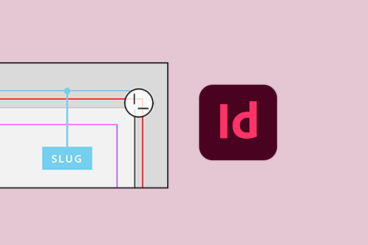
Adobe InDesign is a powerful tool for designing and laying out print and digital media. It offers numerous features to streamline and enhance the design process, and one such feature is the “slug.”

The slug area in InDesign serves as a space for including important information about the document that is relevant to the production process but not visible in the final output.

In this article, we will explore the concept of a slug in InDesign, its purpose, and how to effectively use it in your design projects.

How to Save as PDF in InDesign: A Step-by-Step Guide

InDesign Templates / 24 Mar 2023

How to Save as PDF in InDesign: A Step-by-Step Guide

Adobe InDesign is a powerful tool for creating visually compelling print and digital publications. When it comes to sharing or distributing your InDesign work, one of the most popular and versatile formats is the Portable Document Format (PDF).

Saving your InDesign file as a PDF is a relatively simple process that enables you to maintain the integrity of your design elements while ensuring compatibility across various devices and platforms.

In this article, we’ll walk you through the step-by-step process of saving an InDesign file as a PDF.