Search Results For: photo

The Master Guide to the Photoshop Layers Panel

Software / 10 Sep 2012

The Master Guide to the Photoshop Layers Panel

The Layers Panel in Photoshop is one of the single most important aspects of the software’s UI. Odds are, you’ve spent a good chunk of your life staring at and interacting with the Layers Panel, but how well do you really know it?

Today we’re going to take a deep dive into what the Layers Panel has to offer and how to make the most of it in your workflow. We’ll learn about everything from keyboard shortcuts to obscure customization features. Whether you’re a beginner or a pro, you’re bound to learn a few new tricks!

Build a Fun Photo Swap Animation With CSS Keyframes

CSS / 5 Sep 2012

Build a Fun Photo Swap Animation With CSS Keyframes

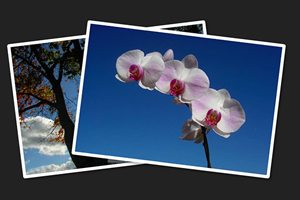
CSS keyframe animations open up a vast range of possibilities for what can be accomplished with CSS. Much more than simple, one-step transitions, keyframes can be used to achieve complex, multi-step animations that are quite impressive.

In today’s project, we’re going to start from scratch and build a stack of two photos that spread out and swap their stacking order when you hover over them. Along the way we’ll learn all about how to wield keyframes like a pro and juggle all of those head-spinning prefixes!

How to Turn Photographic Textures Into Masks in Photoshop

Software / 30 Jul 2012

How to Turn Photographic Textures Into Masks in Photoshop

Texture is a key element of design. Learning how to wield and apply textures effectively will really open up your level of skill and proficiency in Photoshop.

Today we’re going to learn about a super quick and easy way to take a photographic texture and turn it into a mask that affects the transparency of a layer. No matter how proficient you are with Photoshop, you should be able to pick up this technique and begin using it on your projects today.

CSS Hat: A Magic Button That Turns Photoshop Styles Into CSS

CSS / 13 Jun 2012

CSS Hat: A Magic Button That Turns Photoshop Styles Into CSS

Taking a design from Photoshop to the web in a click is not even a remotely new idea. For as long as there have been “web designers” there has been the dream of such a workflow. Today we’re going to look at yet another tool that makes this promise: CSS Hat.

CSS Hat is different than other apps that you’ve seen though. It’s not a full blown WYSIWYG aimed at allowing you to build an entire site without writing code, rather it’s a way to bust out a few quick CSS3 styles on a single element using the process that you’ve used for the past decade or more, right in Photoshop. Spoiler alert: it’s good. Really good. Read on to see why.

Build an Animated Photo Wall With CSS

CSS / 7 Jun 2012

Build an Animated Photo Wall With CSS

Today we’re going to embark on the adventure of building yet another awesome and fun CSS demo. This time we’ll create a big, seamless wall of photos. When the user hovers over an image, a transparent black overlay will fade it out as a text label fades in and the image zooms.

The result is pretty slick and I’ve also thrown in a bonus second version for those that make it all the way through the tutorial. Read on to get started!

Build an Infinite Scrolling Photo Banner With HTML and CSS

CSS / 3 Apr 2012

Build an Infinite Scrolling Photo Banner With HTML and CSS

Today we’re going to embark on the challenge of creating an animated banner of photos that automatically scrolls horizontally through an infinite loop. The best part: we’re going to do it without a single line of JavaScript.

To make this banner truly useful, our goal will be to use individual photos dropped into our HTML, not simply one long CSS background that repeats. This is pretty tricky but we’ll walk you through exactly how it works. Let’s get started!

Mastering Multiple Photo Layouts

Layouts / 2 Mar 2012

Mastering Multiple Photo Layouts

Working with multiple photos and images can be a tricky prospect. Done carefully, the use of multiple images can help create an effective and masterful design for both print and web design projects. Some of the best examples of design using multiple photos can be found in the websites of professional photographers.

Consider dominance, number of photos, color, grouping and image quality when working with a variety of photos. Look at details and consider the feel of a project to get the best results when using many images in your project.

How to Create a Facebook Timeline Cover Photo: Examples and Best Practices

Layouts / 2 Feb 2012

How to Create a Facebook Timeline Cover Photo: Examples and Best Practices

Facebook announced Jan. 24 that it will be moving all users to the timeline format in the next few weeks. Although the change will be mandatory soon, you can make it early as some users have been doing since it was launched in September. Timeline is the new Facebook “wall” and highlights your personal information based on when it happened.

The biggest visual change included in Facebook timeline is creation of a cover photo. When someone lands on your page they not only see a small square profile image but also a large photo that you have selected for the top of your page. The shape can a little intimidating and includes a hole where the profile image rests. But you can crop or create your own timeline cover photo in just a few minutes. Follow along as we take a look at some great examples and advice for creating the perfect cover photo.

When the Photo Doesn’t Fit the Space: Tips and Tricks for Making It Work

Graphics / 12 Jan 2012

When the Photo Doesn’t Fit the Space: Tips and Tricks for Making It Work

You’ve been there a thousand times, staring at a big empty canvas that simply doesn’t seem to work with the photo that the client has provided. Perhaps you have a vertical space and a horizontal photo (or vice versa), or maybe the image is simply too small to resize without unacceptable quality loss. What now?

Today we’ll go over some tricks of the trade and teach you how to cope with images that don’t fit where you need them to. The next time you run into a problem, you’ll be ready!

The Ultimate Beginner’s Guide to Using Scatter Brushes in Photoshop

Software / 28 Dec 2011

The Ultimate Beginner’s Guide to Using Scatter Brushes in Photoshop

In web design we often focus on using Photoshop to create pixel perfect designs that are meticulously shaped and layered until they’re absolutely pristine. Repeated patterns, tiny strokes, complex gradients and reflections are trademarks of this design style.

But what if you’re going for something more organic? How can we use Photoshop to create complex and random particle arrangements that don’t look cheesy and contrived? The answer of course is to utilize scatter brushes. This awesome tool seems fairly simple on the surface but there’s a ton functionality and limitless possibilities to explore so even if you’re a Photoshop pro, read on to see some great ideas for how to use scatter brushes in your work.

5 Simple Steps to Stunning Portraits in Photoshop

Software / 21 Nov 2011

5 Simple Steps to Stunning Portraits in Photoshop

Today’s article points out a harsh but true reality: just because you know how to use Photoshop for design work doesn’t mean you know how to edit photos. Fortunately, we’ve got you covered.

Follow along as we show you five simple and lightning fast steps you can take to transform your plain, boring portraits to stunning images that look straight out of a professional photographer’s portfolio. Along the way you’ll learn several important tips such as how to properly sharpen an image and how to draw the viewer’s attention to where you want it to go.

Close Photoshop and Grab a Pencil: The Lost Art of Thumbnail Sketches

Inspiration / 10 Nov 2011

Close Photoshop and Grab a Pencil: The Lost Art of Thumbnail Sketches

Long before web UI mockups came along, print designers would hone their ideas using a tried and true method called thumbnail sketching. This practice seems to be somewhat of a lost art so we’re going to shed some light on it!

Today we’ll briefly discuss what thumbnail sketches are, some tips for creating them and how to effectively implement them into your already busy workflow.